




SAP Business One - User Guide for Goods Return
*Note: Status of Goods Receipt PO is Open
Reference Document:
- Purchasing Process in SAP Business One | Procurement Process
- Purchasing Items in SAP Business One | Purchasing Items Overview
- Issue with Good Receipt POs in SAP Business One | Issue Good Receipt POs Overview
- Good Returns and A/P Credit Memos in SAP Business One | Good Returns and A/P Credit Memos Overview
In SAP Business One, we have 3 options.
Option 1: Create new Goods Return
After start SAP Business One, Click Main Menu -> Purchasing A/P -> Goods Return
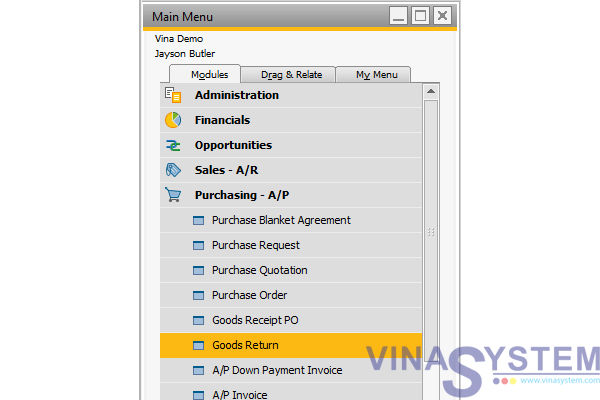
Pic 1
User click Tab on keyboard when the pointer at Vendor or Name for view list vendor.
Choose vendor
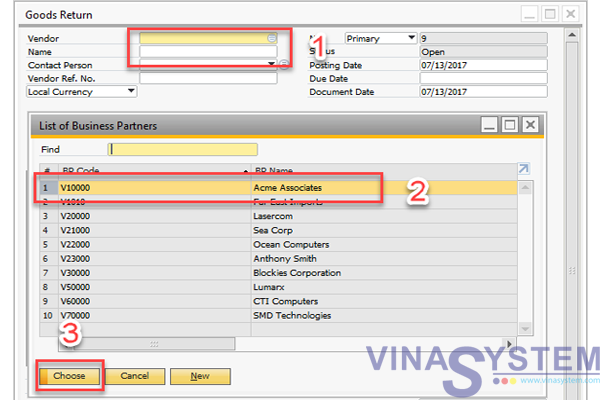
Pic 2
After user choose vendor to need create goods return, choose product for Goods Return
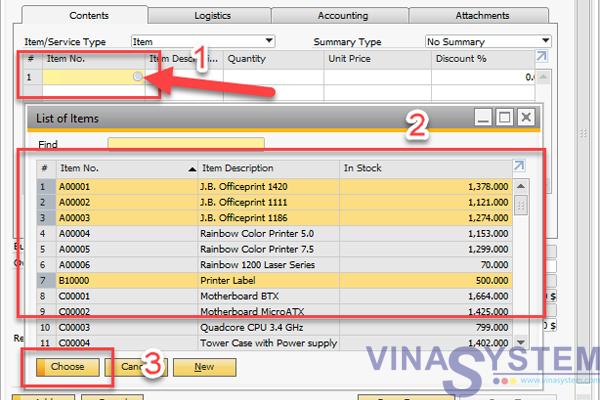
Pic 3
Fill information
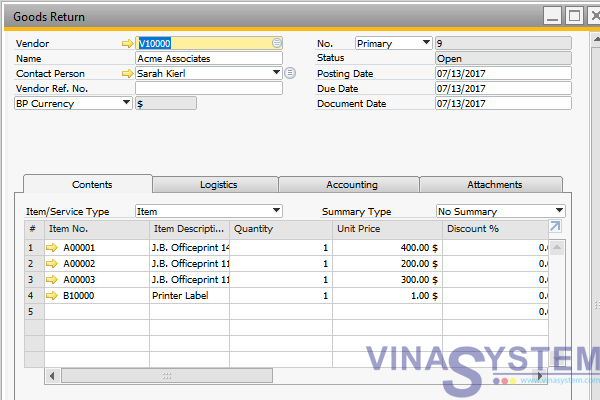
Pic 4
- Posting Date
- Due Date
- Document Date
- Quantity
- Unit Price
- Discount
- Tax Code
- Total (LC)
- Whse
Click Add
Option 2: Use command Copy From of Goods Return
Same Option 1, Click Main Menu -> Purchasing A/P -> Goods Return
Choose vendor
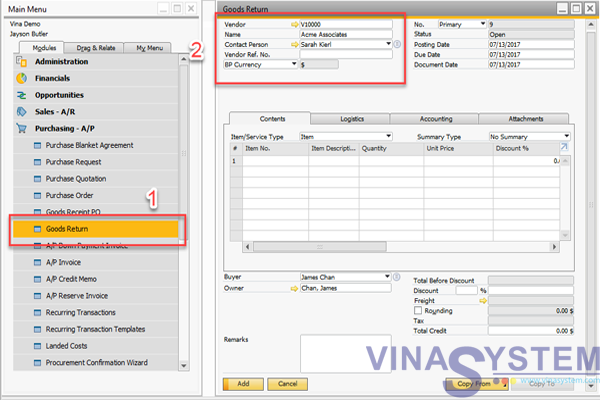
Pic 5
Use command Copy From -> Goods Receipt PO
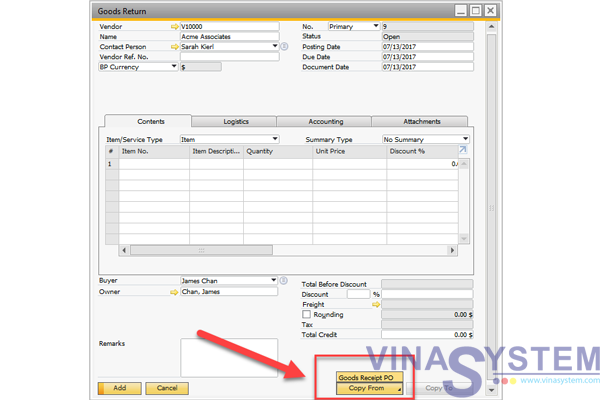
Pic 6
View list of Goods Receipt PO, choose Goods Receipt PO to Goods Return.
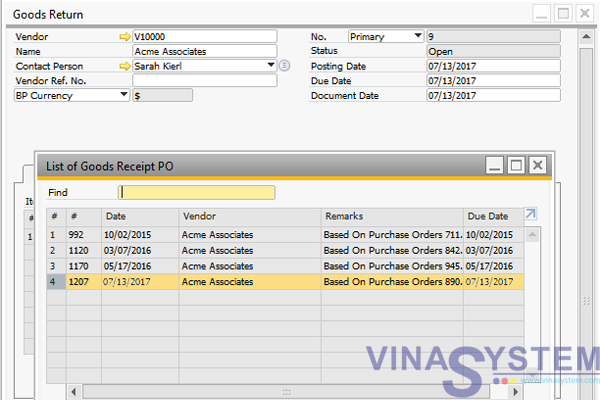
Pic 7
User choose condition and click Finish.
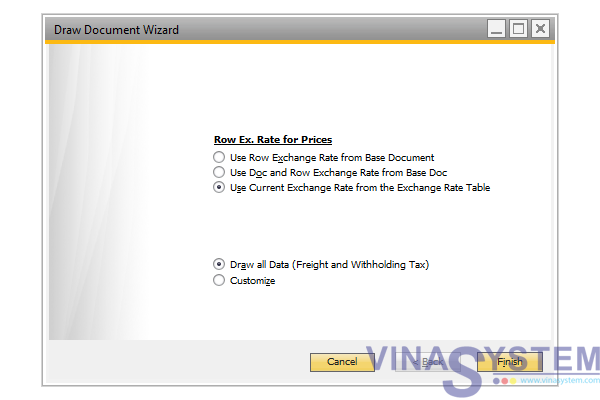
Pic 8
- Use Row Exchange Rate from Base Doc
- Use Doc and Row Exchange Rate from Base Doc
- Use Currency Exchange Rate from the Exchange Rate Table
- Draw all Data (Freight and Withholding Tax)
- Customize
Click Add
Option 3: Use Command Copy To from Goods Receipt PO
Open Goods Receipt PO create before, use command Copy To and choose G. Return
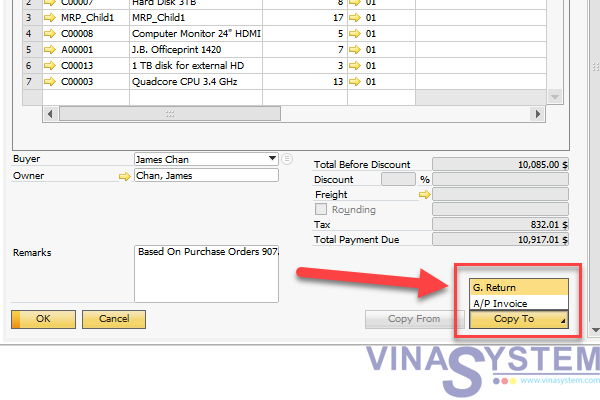
Pic 9
The system automatic convert information from Goods Receipt PO to Goods Return. User check information and click Add
Copyright VinaSystem 13/07/2017