



SAP Business One - User Guide for Purchasing Process
A guide to using SAP Business One - Purchase Process
Reference document:
- Purchasing Process in SAP Business One | Procurement Process
- Purchasing Items in SAP Business One | Purchasing Items Overview
- Issue with Good Receipt POs in SAP Business One | Issue Good Receipt POs Overview
- Good Returns and A/P Credit Memos in SAP Business One | Good Returns and A/P Credit Memos Overview
I. Purchase Order
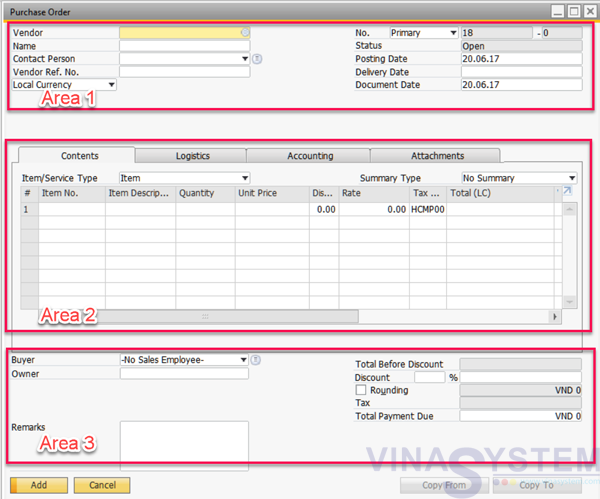
User click Main Menu -> Purchasing – A/P -> Purchase Order for create new sales order.
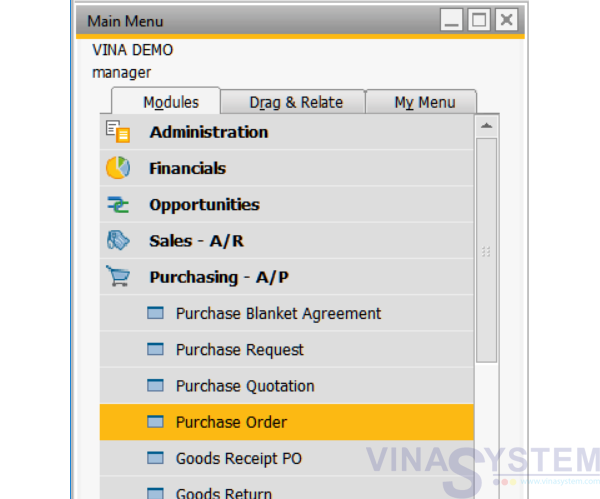
Pic 1
Appear windows of Purchase Order
- Area 1: vendor information
- Area 2: commodity information
- Area 3: total order value
Pic 2
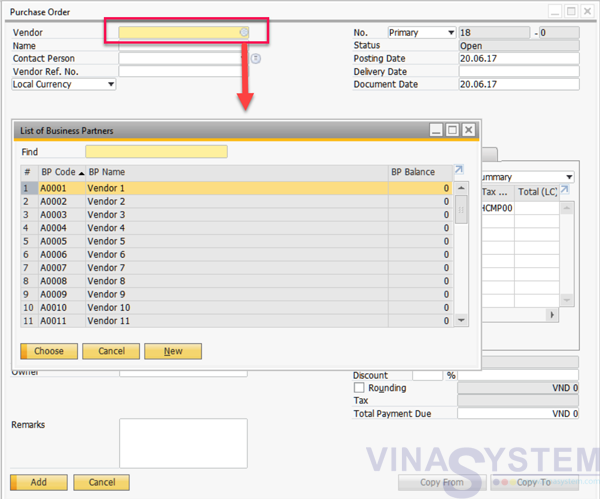
Choose Vendor
Pic 3
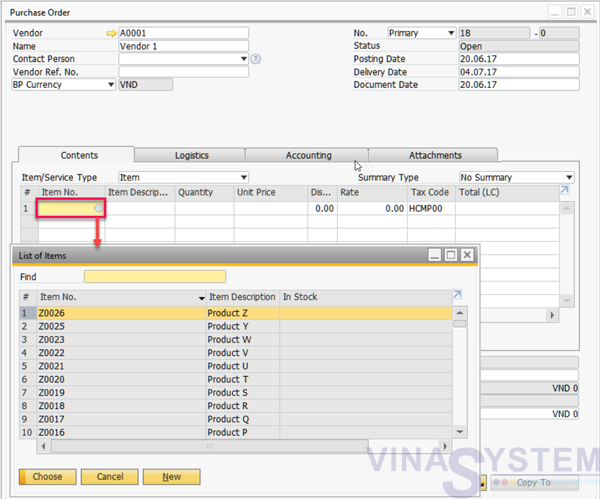
User select Item
Pic 4
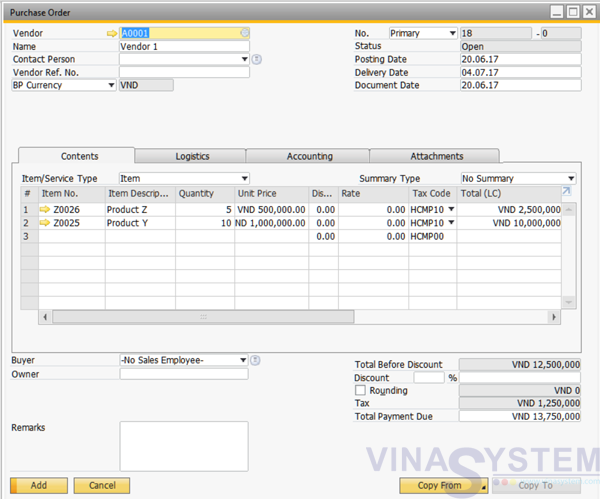
Area 1:
- Posting Date
- Delivery Date
- Document Date
Area 2:
- Quantity
- Unit Price
- Discount
- Tax Code
- Total
- Whse
Click Add
Pic 5
Note: Purchase Order created does not affect the actual stock and does not generate journal entries
II. Goods Receipt PO
We have two option create Goods Receipt PO
Option 1: From Purchase Order screen, User use command Copy To and click Goods Receipt PO
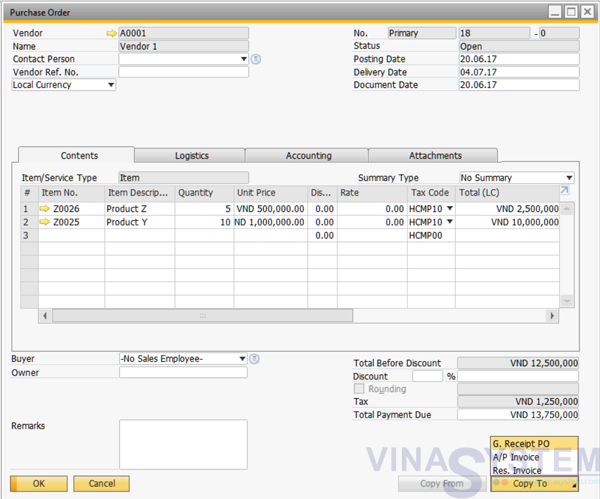
Pic 6
Option 2: Create Goods Receipt PO by click Main Menu - > Purchasing -A/P -> Goods Receipt PO, Choose Vendor and user use command Copy From and click Purchase Order
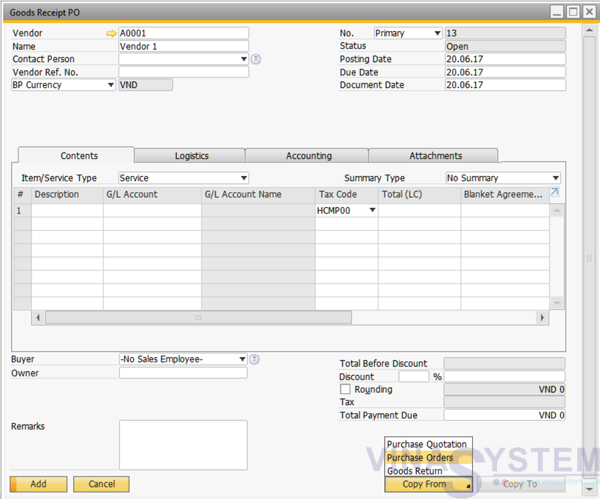
Pic 7
All inventory information has been recorded in the system, click Add
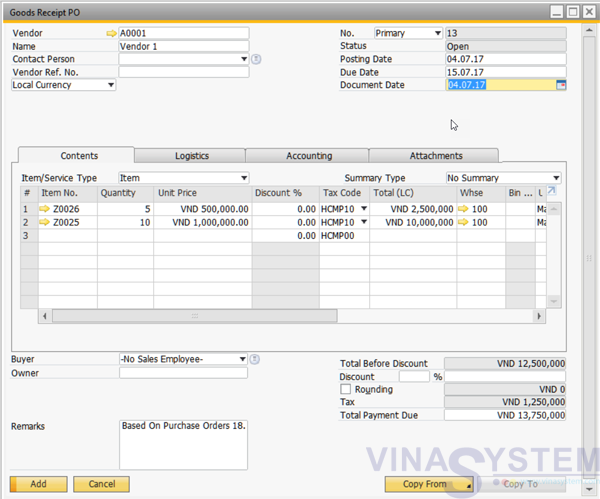
Pic 8
III. A/P Invoice
The A/P Invoice screen allows logging of input information and affects the vendor's debt. Users manipulate the Copy From or Copy To functions similarly to the Goods Receipt PO screen.
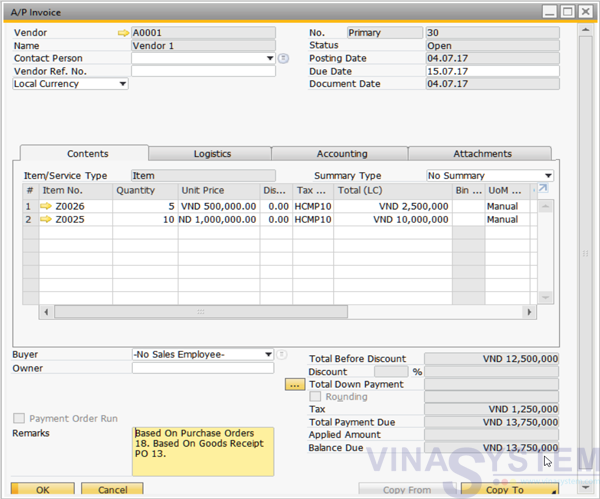
Pic 9
IV. Outgoing Payment
After user have completed the steps of the purchase process including Purchase Order -> Goods Receipt PO -> A/P Invoice, the next step is to pay the customer according to the established invoice.
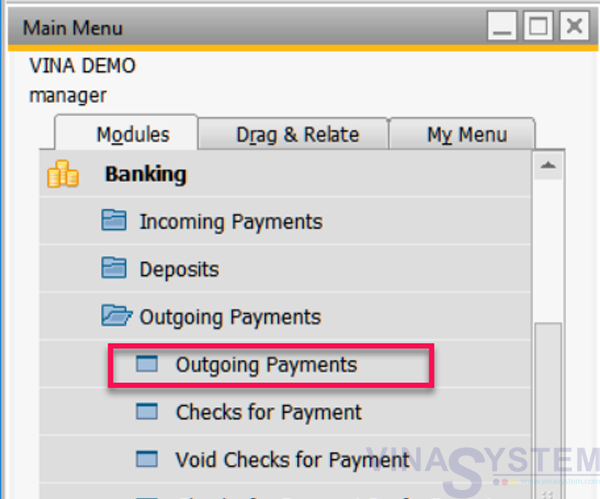
Click Modules Banking -> Outgoing Payments -> Outgoing Payments
Pic 10
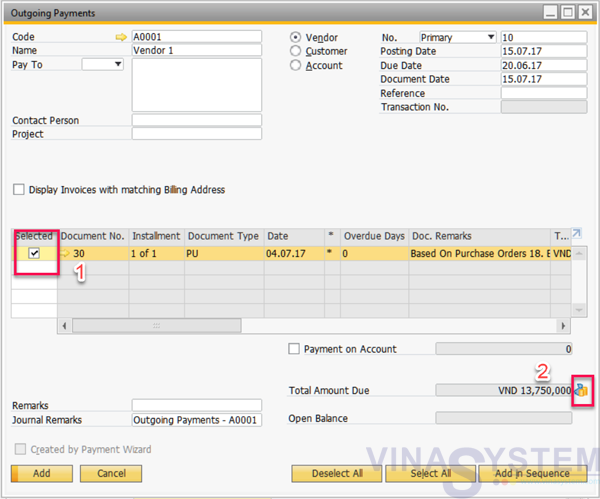
Select the vendor, select the bill for payment, click on the wallet icon to complete the payment to the supplier.
Pic 11
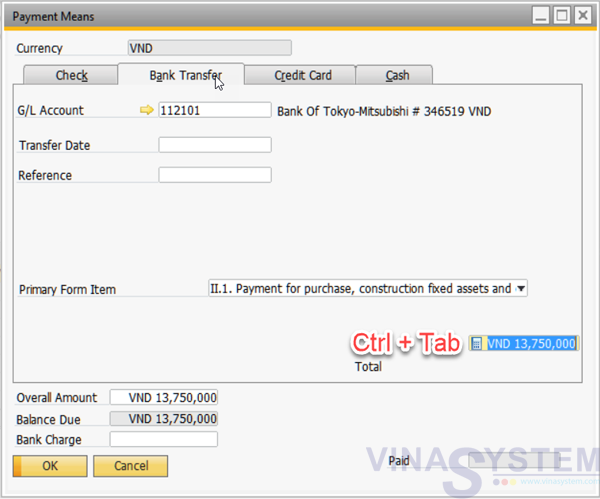
Select the form of payment by cash or transfer, press Ctrl Tab choose the amount to pay
Pic 12
Click Add on Outgoing payment screen
Copyright VinaSystem 20/06/2017